Canva Resize Alternatives: 7 Free Ways to Resize Without Canva Pro
 CropDen
Canva’s Magic Resize needs a paid plan. Seven free alternatives, from Adobe Express to Photopea, BIRME and CropDen, compared on account, uploads and batch.
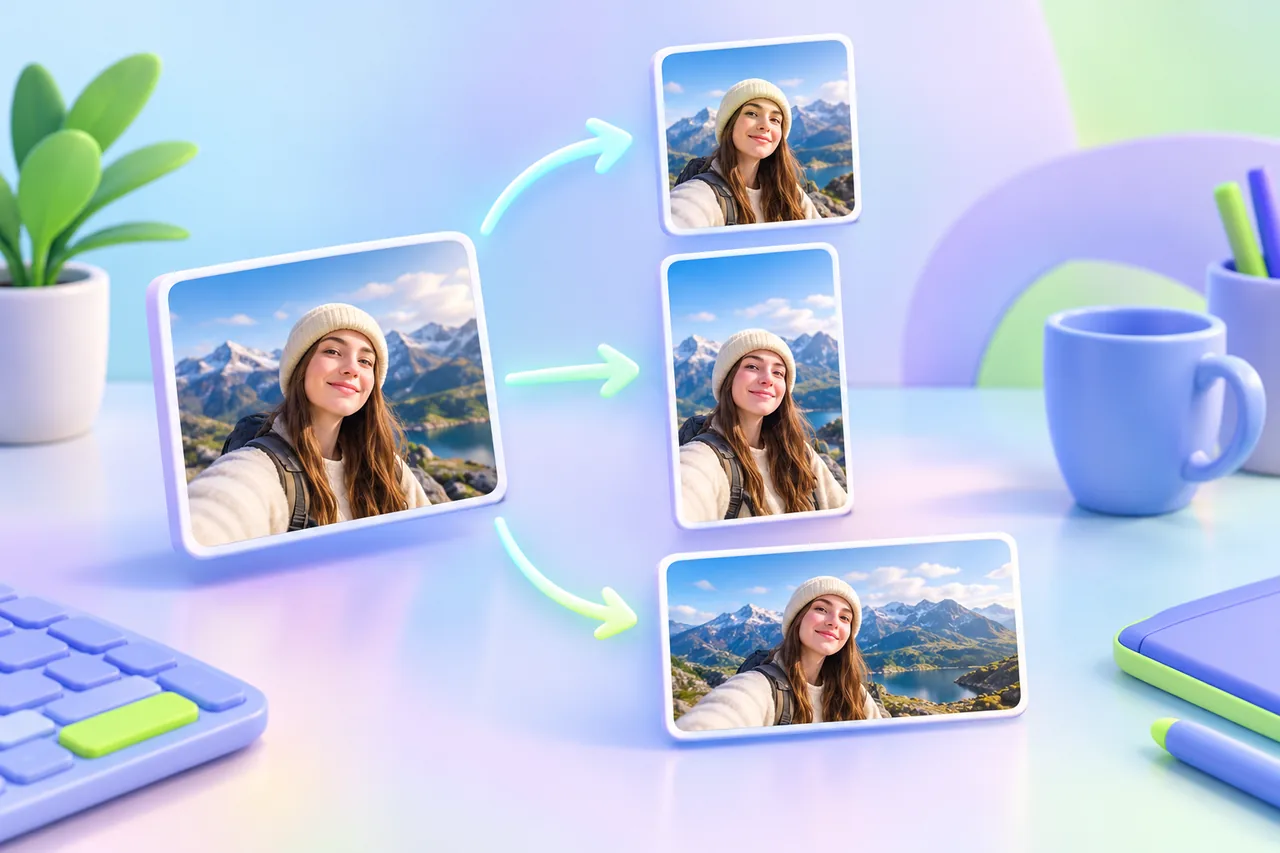
Canva's one-click resize feature is now called Magic Resize, and you open it from Resize in the editor menu bar. As of October 2026, Canva's help center lists it for the Pro, Business, Enterprise, Education, Higher education, Nonprofits and Teams plans, so Canva Free users can't use it. Canva Pro costs US$18 a month or US$144 a year for one person.
If you need a design with text resized for free, Adobe Express is the closest alternative, and Photopea works if you're happy to resize by hand in a full editor. If you only need photos at platform sizes, BIRME, SammaPix and CropDen do it in your browser without uploading anything. Kapwing and Fotor also have free resizers, but check their watermark rules first.
What Canva's Resize does well
Magic Resize is good at something the other tools on this list mostly don't try to do: it changes the size of a finished design, not just a photo.
- Copy & resize or Resize this design. You can keep the original and make resized copies, or resize the design in place. Copies of several sizes go into a new folder.
- Several sizes at once. You can pick multiple sizes, or a bundle such as "Vertical videos", and resize up to 50 designs at once, with up to 5 new sizes per design and 250 outputs per action.
- Custom sizes from 40 × 40 px up to 8000 × 3125 px.
- Everything stays editable. Text, logos, brand colors and templates carry over into each size, so you adjust a layout instead of rebuilding it.
If you publish the same campaign to five platforms every week, that's worth paying for.
Why people look for an alternative
These are the reasons that come from Canva's own pages:
- It's paywalled. Magic Resize isn't in the Free plan, and on paid plans each use counts against your monthly AI usage limit.
- You need an account. Canva's Image Resizer page tells you to log in to work on a new or existing design.
- Your photos are uploaded and stored. Uploads live in your Canva account and count toward your storage: 5 GB on Free and 100 GB on Pro.
- There's a size ceiling. Magic Resize accepts custom sizes up to 8000 × 3125 px.
- It's a design tool for a photo job. If you just need 40 product photos at 1080 × 1080, opening each one as a design is slow.
To be fair to Canva Free: you can still resize by hand. Free includes designs at custom dimensions, so you can start a 1080 × 1350 design, place your photo and download a JPG or PNG. Canva's help center also says that on the Free plan, watermarks appear on premium elements, and it doesn't list them on anything else.
Canva Resize vs the alternatives
As listed in October 2026. Prices in USD.
| Tool | Price (free / paid) | Account needed? | Uploaded or processed in the browser? | Resize a design with text into new sizes | Batch resize photos | Watermark on free exports |
|---|---|---|---|---|---|---|
| Canva | Free; Pro $18/mo or $144/yr | Yes | Uploaded and stored in your account | Yes, with Magic Resize on paid plans | Through Magic Resize (paid), up to 50 designs | Only on premium elements |
| Adobe Express | Free; Premium $9.99/mo | Not for the Resize image quick action (our test) | Uploaded to Adobe | Premium only | No, one image per quick action | None (our test) |
| Photopea | Free with ads; Premium removes ads | No | In the browser | By hand (layers, text, artboards) | Batch format conversion; batch resize not stated | None mentioned |
| Kapwing | Free; Pro $24/mo or $16/mo billed yearly | No, but signed-out uploads are reachable by link | Uploaded | Not stated | Not stated | Yes |
| Fotor | Free; Pro $10.99/mo or $47.99/yr | Not for the resizer, per Fotor | Uploaded; batch uploads deleted after 24 hours | Not stated | Up to 50 images (resizer page); plan table lists it as paid | Free plan not listed as watermark-free |
| BIRME | Free | No | In the browser | No (photos only) | Yes, with free ZIP | None (our test) |
| SammaPix | Free; Pro $9/mo or $65/yr; Day Pass $2.99 | No (free account: 50 per batch, no ads) | In the browser | No (photos only) | 20 per batch free, 500 on Pro; ZIP on Pro | None (our test) |
| CropDen | Free; Pro $9/mo or $65/yr; Day Pass $2.99 | No (free account: 50 per batch) | In the browser | No (photos only) | 20 per batch free, 50 with a free account, 500 on Pro; ZIP on Pro | No |
"Our test" means we used the free tool signed out on October 29, 2026, and downloaded the result. CropDen is our own product.
1. Adobe Express: the closest thing to Canva
Adobe Express is a template-based design editor like Canva, and its free plan includes templates, stock assets, standard photo and video editing tools and 5 GB of storage. The Resize image quick action is free: it takes JPEG, PNG, WebP or HEIC files up to 40 MB, offers social platform presets and custom sizes, and in our test it downloaded without signing in and without a watermark. The free plan also includes Safe Zones guides in the editor and a Remove Image Background quick action.
Trade-offs vs Canva: the free quick action resizes one image at a time. Resizing a design into several formats at once, Adobe's equivalent of Magic Resize, needs Premium at $9.99 a month (30-day free trial). Images are uploaded to Adobe.
2. Photopea: a free full editor that keeps files on your device
Photopea is a Photoshop-style editor in the browser, with layers, text, masks and artboards, and it opens PSD and dozens of other formats. Its privacy policy says files you open "never leave your device", and you don't need an account. It's free with ads; Premium removes them and is bought as a one-time payment for a set number of days.
Trade-offs vs Canva: nothing is automatic. You change the canvas or image size and rearrange the layout yourself, and its site doesn't mention platform presets or a batch resize tool.
3. Kapwing: works signed out, but watermarks free exports
Kapwing's image resizer has presets for YouTube, Instagram and LinkedIn, custom pixel sizes and an AI Image Extender that fills new canvas space instead of padding it. It also edits video, and Kapwing says it doesn't serve ads.
Trade-offs vs Canva: the free plan exports with a Kapwing watermark. Kapwing's FAQ warns that uploads made while signed out may be accessible to anyone with the unique link. Removing the watermark costs $24 a month, or $16 a month billed yearly, more than Canva Pro.
4. Fotor: many presets, mixed signals on the free plan
Fotor's resizer page lists presets for YouTube, Instagram, Facebook, Twitter, WhatsApp, LinkedIn, Pinterest and Snapchat, says no registration is required and advertises batches of up to 50 images. Its batch page says uploads are deleted from its servers after 24 hours.
Trade-offs vs Canva: Fotor's plan comparison lists "Batch editing", "Watermark-Free" and "Ad-free experience" only on paid plans (Pro is $10.99 a month or $47.99 a year), so check your first free export.
5. BIRME: free, private batch resizing
BIRME resizes and crops a whole batch to one size in your browser, with no sign-up. It detects focal points automatically, lets you draw a crop area per image, outputs JPG, PNG, WebP or AVIF, renames files and downloads everything as a free ZIP.
Trade-offs vs Canva: it works on photos, not designs, so there's no text or layout. There are no platform presets either; you type the dimensions.
6. SammaPix: batch resizing with social presets
SammaPix's ResizePack runs in the browser and has six presets: Instagram Post, Instagram Story, Twitter/X Post, LinkedIn Post, YouTube Thumbnail and A4 print at 300 dpi. In our test it downloaded a resized file signed out, with no watermark.
Trade-offs vs Canva: photos only, with no text or layout. Free batches stop at 20 files (50 with a free account), and ZIP download needs Pro at $9 a month or $65 a year.
7. CropDen: platform sizes with safe zones, no upload
CropDen is our own tool. It processes images on your device in the browser, on desktop or phone, needs no sign-up and adds no watermark. Its platform size pages draw safe-zone overlays on your image: the Instagram post page shows the 3:4 grid crop of a 1080 × 1350 post, and the YouTube banner page marks the 1546 × 423 safe area of a 2560 × 1440 banner. It also covers the Instagram story, Facebook cover, Discord, LinkedIn, Twitter/X header, Twitch and TikTok, plus passport photos with head-size guides and a 4 × 6 in print sheet. Batch resize fits a whole set to one size, and Adjust lets you frame any single image by hand.
Free covers 20 images per batch without an account, 50 with a free account, and files up to 20 MB. Pro ($9 a month or $65 a year, 45% off for the first 200 subscribers for as long as they stay subscribed) adds 500 images per batch, 50 MB files and ZIP download, and a Day Pass gives 24 hours of Pro for $2.99.
Trade-offs vs Canva: CropDen has no design editor, so you can't add text, templates, stickers or layers. It has no AI features, no background removal and no face detection (batch crops are centered or from the top), and it handles still images only. There's no app or cloud storage, ZIP download and batches over 50 need a paid plan, and the site is new.
Which one to pick
- You resize the same design with text into several sizes every week: Canva Pro's Magic Resize is worth paying for. Adobe Express Premium ($9.99 a month) is the cheaper paid option that also resizes a design into several formats at once.
- You need one design in one new size, free: start a design at custom dimensions in Canva Free, or use the free Adobe Express editor.
- You only need a photo at a platform size: CropDen, if you want the safe zone shown on the image, or Adobe Express's free quick action.
- You have a folder of photos: BIRME, with a free ZIP. Use SammaPix or CropDen if you want platform presets.
- The photos are private: BIRME, Photopea, SammaPix or CropDen, which process images on your device.
- You need layered edits or PSD files: Photopea.
- You need a passport photo: CropDen's passport photo tool. Take the photo against a plain white wall, because CropDen can't replace the background.
- It's a video: Kapwing (paid to remove the watermark) or Adobe Express, whose free plan includes a Resize Video quick action.
For the current pixel sizes on each platform, see the social media image sizes cheat sheet.
Questions people ask
Sources
- Canva — Pricing
- Canva Help — Resize designs and size limits
- Canva — Image Resizer
- Canva Help — Watermarks or Canva logos are on my design
- Canva Help — Upload media
- Adobe Express — Pricing
- Adobe Express — Free image resizer
- Adobe Help — Resize images using Quick actions
- Photopea — Homepage
- Photopea — Terms of Use and Privacy Policy
- Photopea — Accounts
- Photopea — Learn
- Kapwing — Pricing
- Kapwing — Resize Image
- Kapwing Help — Frequently Asked Questions
- Fotor — Pricing
- Fotor — Free Online Image Resizer
- Fotor — Batch Resize Images
- BIRME — Bulk Image Resizer
- SammaPix — Pricing
- SammaPix — ResizePack batch resizer