How to Post a Full Photo on Instagram Without Cropping
 CropDen
Pad the photo onto a 1080 × 1350 or 1080 × 1440 px canvas (1080 × 1920 for stories) with a blurred or white fill. Instagram then has nothing left to crop.
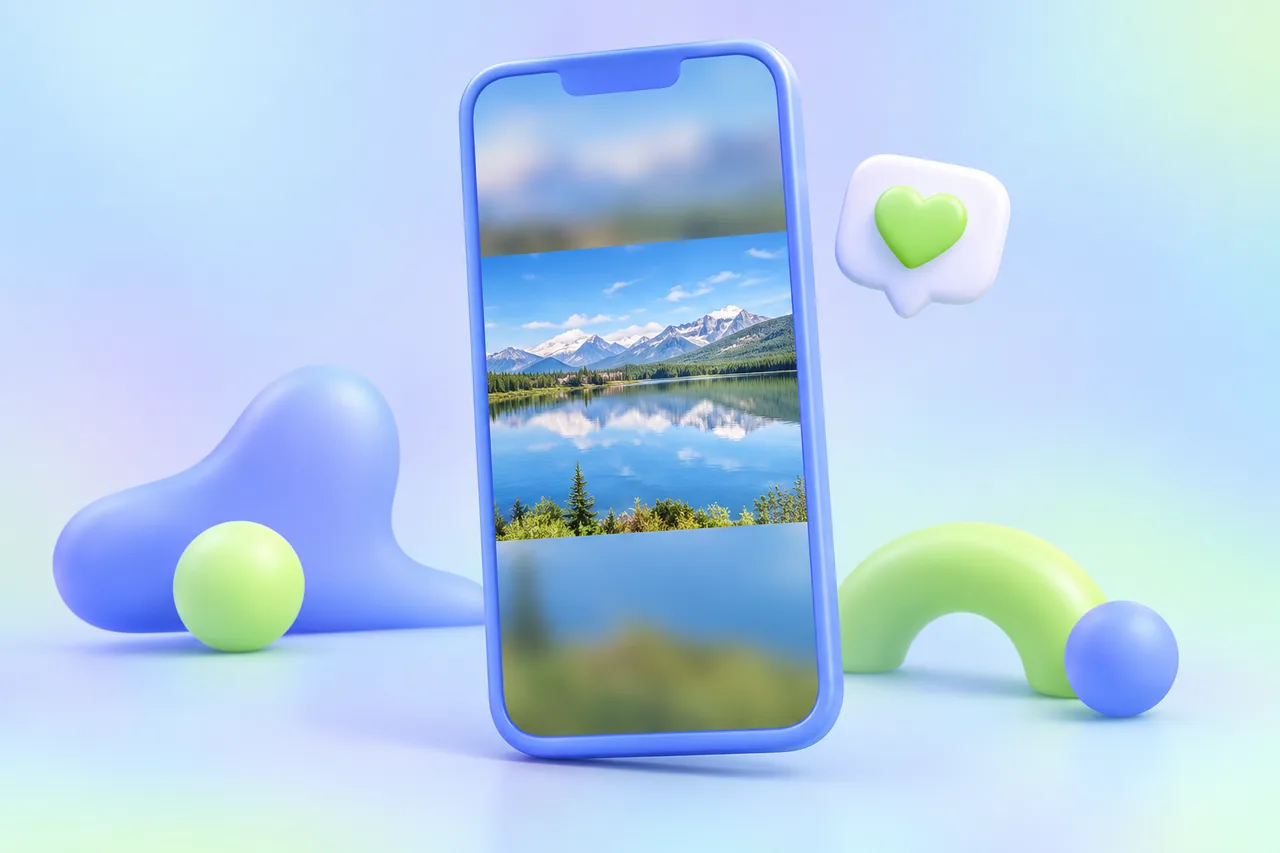
To post a full photo on Instagram without cropping, put it on a canvas Instagram accepts as is, then fill the empty space around it. Use 1080 × 1350 px (4:5) or 1080 × 1440 px (3:4) for the feed and 1080 × 1920 px (9:16) for stories, with a blurred copy of the photo, white or a solid color as the fill. The whole picture stays in the frame, and Instagram has nothing left to cut.
You can do this in your browser with Fit whole image on CropDen's Instagram post size tool or story size tool. It's free to use, needs no sign-up, adds no watermark, and your photos are never uploaded.
- Pick the canvas: 1080 × 1350 or 1080 × 1440 for a post, 1080 × 1920 for a story.
- Choose Fit whole image and a fill: blur, white, black or your own color.
- Download a JPG at 1080 px wide.
- Post it without zooming or cropping in the app.
Why Instagram crops your photo
Instagram shows the same post in three places, and each one has its own shape:
| Where | Shape | Size at 1080 px wide | What happens to other shapes |
|---|---|---|---|
| Feed | 1.91:1 to 3:4 | 1080 × 566 to 1080 × 1440 | Cropped to fit the supported range |
| Profile grid | 3:4 tile | 1080 × 1440 | Trimmed to a 3:4 tile in the grid view |
| Story | 9:16 | 1080 × 1920 | Doesn't fill the screen unless you zoom in |
The feed. Instagram's help center says it keeps a photo at its original resolution when the width is 320 to 1080 px and the aspect ratio is between 1.91:1 and 3:4, which is 1080 × 566 to 1080 × 1440 px. "If the aspect ratio of your photo isn't supported, it will be cropped to fit a supported ratio." Many guides still give 4:5 as the tallest shape; the help center now lists 3:4. Either way, these photos lose part of the frame:
- 9:16 phone screenshots and other full-screen images, which are taller than 3:4.
- 2:3 portrait photos from most DSLRs and mirrorless cameras, also taller than 3:4.
- Panoramas wider than 1.91:1.
The profile grid. Since January 2025, the grid on your profile shows every post as a 3:4 tile instead of a square (the tiles on instagram.com still measured 3:4 in October 2026). The post itself isn't changed, but the grid view trims anything that isn't 3:4. A 1080 × 1350 post loses about 34 px from each side, a square shows only its middle 810 px, and a 1080 × 566 landscape post shows only its middle 424 px.
Stories. A story is a full-screen 9:16 frame, the ratio Meta specifies for Instagram Stories ads. A photo of any other shape doesn't fill it. Either you zoom it to fill the screen and lose the edges, or it sits on a background the app adds.
What Instagram's own crop screen can do
Instagram's help center only describes cropping. In the app, you tap Edit, then Adjust, then pinch to zoom and drag the photo to change how it fits in the frame. On a computer, you select the size of your photo before you crop. The help center doesn't describe any option that adds a border or keeps a photo that's outside the supported range.
Third-party guides also describe an expand button on the preview that switches between a square crop and the photo's own shape. Instagram doesn't document it, and whether it appears, and where, varies by app version. It can't get past the supported range either, so a 9:16 screenshot or a wide panorama still loses part of the picture. The in-app screen only decides which part.
The method that always works: pad the photo onto a canvas
Padding means shrinking the photo until all of it fits inside an Instagram-sized canvas, then filling the leftover space. The file you upload is already a supported shape, so the app keeps it whole.
- Open the Instagram post size tool, or the story size tool for a story.
- Drop in your photo. Drop several to pad them all at once.
- Pick a preset: 1080 × 1350 for a classic 4:5 post, 1080 × 1440 if you want the profile grid to show the whole canvas too, or 1080 × 1920 for a story.
- Choose Fit whole image. The photo shrinks to fit inside the canvas.
- Choose the fill: blur (a blurred copy of your photo), white, black or a custom color.
- Download a JPG and post it. In Instagram, leave the framing alone; zooming in would crop it again.
The post tool draws the 3:4 grid crop over your image, and the story tool marks the zones at the top and bottom where Instagram draws your profile name and the reply bar. Keep faces and text clear of both.
Which canvas to pick
| Canvas | Feed | Profile grid |
|---|---|---|
| 1080 × 1350 (4:5) | Shows in full | Trims about 34 px from each side |
| 1080 × 1440 (3:4) | Shows in full | Shows in full |
| 1080 × 1080 (1:1) | Shows in full | Shows only the middle 810 px |
With a landscape photo, the difference matters. On a 4:5 canvas the photo runs the full width, so the grid's 34 px side trim cuts into the photo itself, not just the fill. On a 3:4 canvas nothing is lost in either view.
Which fill to choose
- Blur suits most photos. The padding picks up the photo's own colors, so it reads as part of the picture.
- White suits product shots, screenshots with white backgrounds and feeds with a white look.
- Black suits night shots, concerts and moody edits.
- Custom color is for a brand color, or a shade that matches the rest of your grid.
If you'd rather crop than pad, a landscape 4:3 crop is inside Instagram's supported range and shows in full in the feed, though the grid trims its sides.
Carousels
A carousel holds up to 20 photos and videos. Instagram's help center says the orientation you choose (square, portrait or landscape) "affects all of the photos or videos in your post," and you can't pick a different one for each slide. Mixed shapes get cropped to one shape.
- Drop every slide into the Instagram post size tool at once. It resizes the whole batch to the preset you pick.
- Choose one canvas, such as 1080 × 1350, and Fit whole image with the same fill for all of them.
- Upload the slides in order. Your profile shows the first slide as the carousel's grid tile, so lead with the strongest image.
Keep the quality
- Export at exactly 1080 px wide. Instagram keeps photos between 320 and 1080 px wide at their original resolution when the shape is supported. Wider files are scaled down to 1080 px and narrower ones are enlarged to 320 px.
- Use JPG. The help center lists JPG, PNG and HEIC/HEIF as upload formats. CropDen also exports WebP, but WebP isn't on that list.
- Start from the original photo, not a screenshot or a copy saved from a chat app. A smaller source means a softer result.
- Pad once. Make each post from the original rather than padding an already padded file, so the photo isn't resized twice.
- Expect the photo to look smaller, not blurrier. On a 1080 × 1350 canvas, a 3:2 landscape photo fills 1080 × 720 px and the rest is fill. That's the trade-off for keeping the whole frame.
Instagram also processes every upload on its own side. Why photos can still come out soft, and how to export files that hold up, is covered in why Instagram ruins photo quality. Sizes for other platforms are on the social media image sizes cheat sheet. Instagram specs on this page were checked in October 2026.
Questions people ask
Sources
- Instagram Help Center — Image resolution of photos you share on Instagram
- Instagram Help Center — Crop your photo on Instagram
- Instagram Help Center — Share a post with multiple photos or videos on Instagram
- Instagram Help Center — Post a photo on Instagram
- Meta Ads Guide — Image ad specs on Instagram Stories
- Android Authority — Instagram's profile grids are getting a makeover (Jan 18, 2025)