YouTube Banner Safe Area Explained: What Each Device Shows
 CropDen
The YouTube banner safe area is the centered 1546 × 423 px of a 2560 × 1440 image. See what TVs, desktops and phones show, and where text and logos belong.
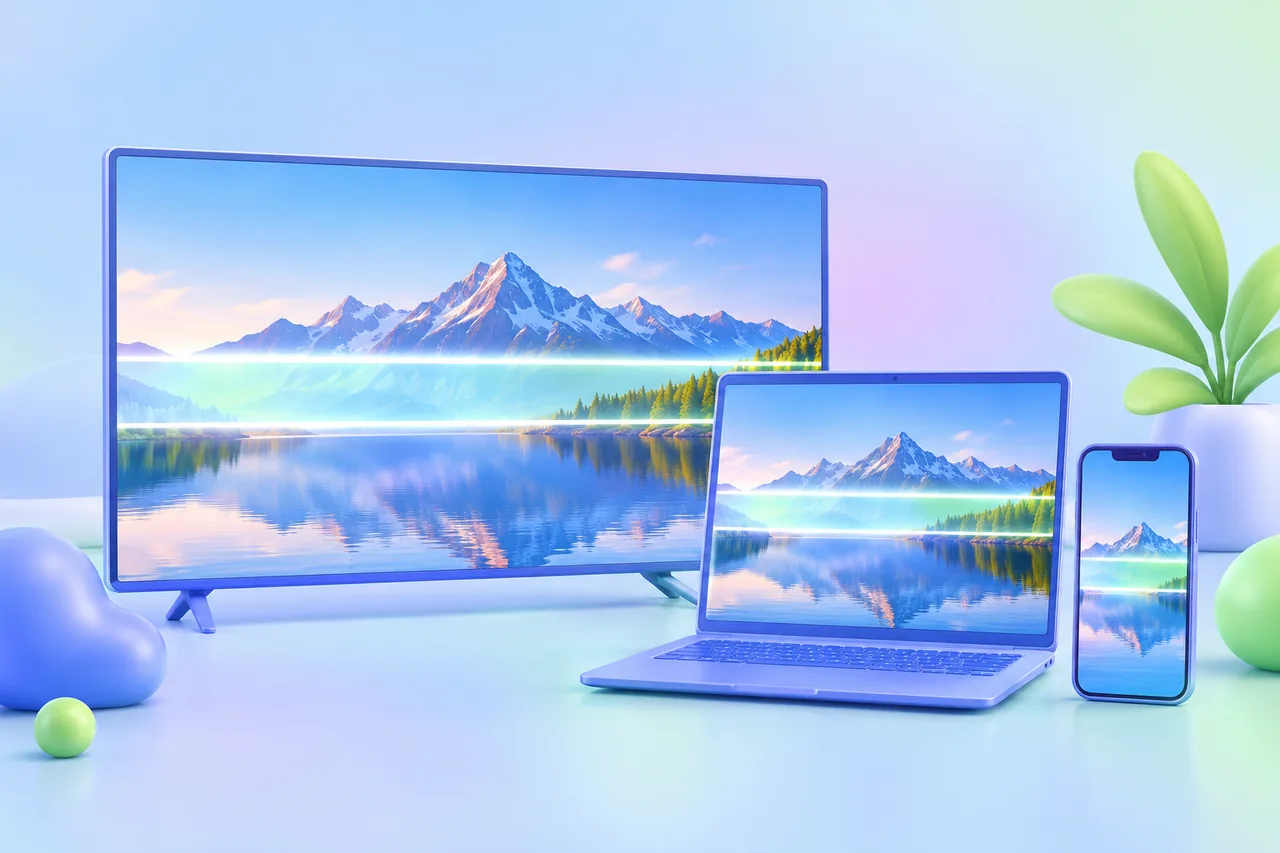
The YouTube banner safe area is the centered 1546 × 423 px rectangle of a 2560 × 1440 px banner. It's the only part of the image that shows on every device, phones included, so your channel name, logo and any text belong inside it. The rest of the canvas still gets seen: TVs show the whole image, and desktop browsers show a wide strip across the middle.
YouTube banner sizes at a glance
YouTube asks for a 16:9 image. The recommended size is 2560 × 1440 px, the minimum is 2048 × 1152 px, and the file must be 6 MB or smaller. From that one upload, each device cuts out its own piece:
| Area | Size on a 2560 × 1440 upload | Where it shows |
|---|---|---|
| Full image | 2560 × 1440 | TVs |
| Desktop strip | 2560 × 423 | Desktop browsers |
| Tablet strip | 1855 × 423 | Tablets |
| Safe area | 1546 × 423 | Every device, including phones |
All of these are centered. On a 2560 × 1440 canvas, the 423 px band runs from y = 508 to y = 931. Inside it, the safe area runs from x = 507 to x = 2053, and the tablet strip from x = 352 to x = 2207.
If you upload at the 2048 × 1152 minimum, YouTube gives the safe area as 1235 × 338 px, still centered. That's the only safe-area figure on YouTube's current help page. The device sizes in the table come from its earlier channel art guidelines, and they keep roughly the same proportions on a 2560 × 1440 canvas.
How much of the desktop strip a viewer actually sees depends on the width of their browser window. On a laptop with a narrow window, the sides get trimmed. That's one more reason to treat the safe area as the only part you can count on.
Why the canvas is so tall when most people see a strip
One banner has to work on a 65-inch TV and a 6-inch phone. A TV shows the channel page as a full 16:9 screen, so it needs a full 16:9 image. Desktop and mobile layouts only have room for a thin band at the top of the page, about 6:1 on desktop and closer to 3.7:1 for the safe area on phones. Instead of asking for a separate file per device, YouTube takes one large image and crops from the center.
On paper that looks wasteful. Everything above and below the 423 px band, about 70% of the canvas height, appears only on TVs, and the safe area covers less than a fifth of the image. In practice it means you design a full picture while expecting most viewers to see only a small window in the middle of it.
How to lay out a YouTube banner
- Start at 2560 × 1440 px. Add guides at x = 507 and x = 2053, and at y = 508 and y = 931. The box between them is your safe area.
- Put everything that has to be read inside that box. That means your channel name, logo, tagline, upload schedule and any handles. Leave some padding instead of pushing text right up to the guides, so no letters sit on the edge of the visible area.
- Let the background run to every edge. TV viewers see all 2560 × 1440 px, so the full canvas needs real artwork: a photo, texture, gradient or illustration that extends well past the safe area. A blank canvas with a strip of art in the middle looks broken on a TV.
- Use the space between the safe area and the desktop edges for supporting art. Desktop and tablet viewers see it, phone viewers don't. Background shapes, scenery or a product shot that still works when cut off fit well here.
- Keep the top and bottom decorative. Only TV viewers see those areas, so don't put anything there that people need to read.
The YouTube banner tool on CropDen resizes your image to 2560 × 1440 in the browser and draws the desktop, tablet and safe-area boxes over it, so you can see what each device will show before you upload. Nothing is sent to a server. If your source image isn't 16:9 yet, crop it to 16:9 first and choose which part of the scene to keep.
Common mistakes
Text near the edges
This is the most common problem by far. A channel name placed at the left of the 2560 px canvas looks fine on a wide monitor and disappears entirely on a phone, which only shows the center 1546 px. Keep all text inside the safe area, with padding.
Designing at 1546 × 423 and uploading that
It seems logical to design only the part everyone sees, but YouTube rejects the file: it's below the 2048 × 1152 minimum and isn't 16:9. The same goes for a 2560 × 423 strip. Place your design in the middle of a full 2560 × 1440 canvas and fill the rest with background.
Text too small for phones
On a phone, the 1546 px safe area is displayed at very roughly a quarter of its pixel size. Text that is 40 px tall on your canvas ends up around 10 points on screen, which is hard to read. As a working rule, make your main text at least 100 px tall on the 2560 canvas, use a bold typeface, and keep it to a line or two. Zoom your design out to 25% and check that you can still read it.
Stretching a small image
Upscaling a 1280 px wide image to 2560 makes it soft, and a TV, which fills the screen with the full image, makes softness easy to spot. Start from a source at least 2560 px wide when you can.
Files over 6 MB
A detailed PNG at 2560 × 1440 can pass 6 MB. Saving it as a high-quality JPEG usually brings it well under the limit with no visible difference.
Pre-upload checklist
- The image is 2560 × 1440 px (or at least 2048 × 1152) and exactly 16:9.
- The file is under 6 MB, saved as JPG or PNG.
- Channel name, logo and all text sit inside the centered 1546 × 423 px area, with padding.
- The background fills the whole canvas, with no blank areas.
- Text is still readable with the design zoomed out to 25%.
- Colors are exported in sRGB.
- In YouTube Studio, upload the banner from the Customization section (the tab names there have changed over time), then use the preview to check and adjust the crop before you publish.
FAQ
What is the YouTube banner safe area size?
1546 × 423 px, centered in a 2560 × 1440 px image. On a minimum-size 2048 × 1152 upload, it's 1235 × 338 px.
Why does my YouTube banner look cut off on my phone?
Phones show only the center 1546 × 423 px of the banner. Anything outside that box, including text near the left and right edges, is cropped. Move it inside the safe area. The YouTube banner size tool shows exactly where that box falls on your image.
Can I upload just the strip that shows on desktop?
No. YouTube requires a 16:9 image of at least 2048 × 1152 px. Put the strip in the middle of a full 2560 × 1440 canvas and extend the background around it.
Do TVs really show the whole banner?
Yes. The TV layout shows the full 2560 × 1440 image, which is why the background has to fill the entire canvas.
Questions people ask
Sources
- YouTube Help — Manage your channel branding (banner image guidelines)
- YouTube Help — Channel banner and profile picture tips
- YouTube Help, archived May 2018 — channel art by device (1546 × 423 safe area, 2560 × 423 desktop, full image on TV)
- YouTube Help, archived April 2016 — tablet display (1855 × 423 px)